User Details
On the User Details page, you can manage the user's membership, reset their passwords, edit their details or add them as a contact.
 To access the User Details page
- From the top navigation tabs, click the Setup tab or from the Utility menu by clicking the drop-down arrow next to your user name.
- In the Administration Tools section, click Users.
- Click Manage Users.
- Optional: User the filter to search for the user.
- Click the name of the user.
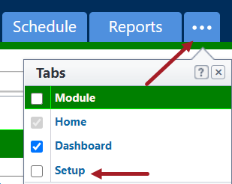
If the Setup tab is not visible, click  , and then select the Setup check box.
Actions Available
On the User Details page, Account Admins can perform the following actions:
Add As Contact
This button appears only if the user is not yet an Trimble Unity Construct contact. Click to add the user as a contact. If the company name is not recognized you will be prompted to save it.
Manage Membership
Opens the Manage Membership page where you will be able to set the user's project membership, validate their account and project roles, and determine the project level template to add them to.
Reset Password
Resets the user’s password and sends the user an email with their new password. This is necessary if the user has exceeded the maximum number of failed password attempts and has been locked out of Trimble Unity Construct.
Unpair Trimble ID (TID)
Account Admins can now unpair a user's Trimble ID directly from the User Details page. This clears the link between the user's Trimble Unity Construct profile and their Trimble ID account, allowing the user to go through the pairing process again on their next login.
This resolves login errors that occur after updating a user's email address, where the user's stored Trimble ID link becomes stale, and the user can no longer authenticate, receiving a generic error with no path to recovery.
For more information, see Trimble ID (TID).
When to use this feature
Use the Unpair Trimble ID feature when a user is locked out and cannot log in due to a Trimble ID mismatch. Common scenarios where this mismatch occurs include:
- Email address updates: An admin changed a user's email address after they had already paired. The user accepted a new TID invite at the new email, but the old Trimble ID link remained stored, creating a mismatch.
- Deleted or recreated TID accounts: An admin resent a TID invite after a user's Trimble ID account was deleted or recreated, creating a new Trimble ID identity with a different ID while the old one remained stored in Trimble Unity Construct.
- External re-provisioning: A user's Trimble ID account was changed or re-provisioned externally, leaving the stored Trimble ID no longer corresponding to any valid identity.
If a user reports a login error after a TID invite was resent or an email change was made, unpairing their Trimble ID is the correct first troubleshooting step.
After unpairing, the Trimble ID link is cleared from the user's Trimble Unity Construct profile. No email change is made. The user's email address remains as-is.
No invitation is automatically sent as part of this action. On the user's next login, they will be prompted to go through the Trimble ID pairing process again using their Trimble Unity Construct password. Once the user completes re-pairing, their new Trimble ID is stored and they can log in normally going forward.
Unpairing does not delete or modify the user's Trimble ID account in any way. It only removes the link stored in Trimble Unity Construct. The user can re-pair on their next login.
If the unpairing fails, try again or contact Support if the issue persists.
To unpair a user's Trimble ID
- From the top navigation tabs, click the Setup tab or from the Utility menu by clicking the drop-down arrow next to your user name.
- In the Administration Tools section, click Users.
- Click Manage Users.
- Optional: Use the filter to search for the user.
- Click the name of the user to open the User Details page.
- Click the Unpair Trimble ID button.
The Unpair Trimble ID button is available only when the user is currently paired with a Trimble ID. This button is only displayed for Account Admins and it will not appear for other user roles.
- In the confirmation dialog box, click Confirm to proceed with unpairing the Trimble ID for the user.
A banner confirms the action was successful and that the user is no longer paired. The Unpair Trimble ID button will no longer be available.
If the Setup tab is not visible, click , and then select the Setup check box.