February 2024 Release Notes
e-Builder Mobile App: Update your e-Builder mobile app to get the latest features.

February 16 - Web
 What's New
Branding Area Updates
The branding area above the top navigation tabs has been updated in e-Builder.

Updated Branding Area
This release includes the following changes:
- Search: A larger Search box is now available when the Search icon
 is clicked.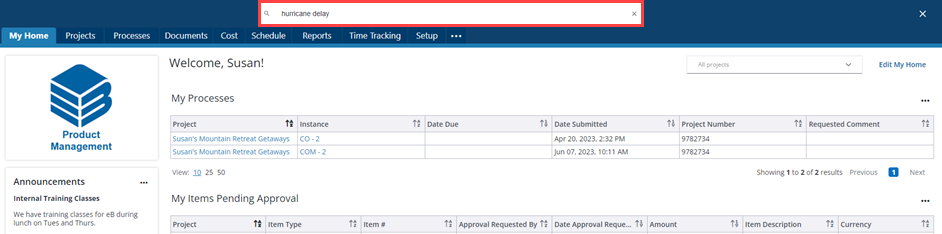
Expanded Search Box
- Accessibility: If your account has accessibility enabled, the accessibility options will be displayed when the Accessibility icon
 is clicked.
 - e-Builder Resource Center: The e-Builder Resource Center with links to the will be displayed when the Resource Center icon
 is clicked.
 - User Menu: Your user profile with access delegation details, a link to the Setup page, and a link to sign out from e-Builder will be displayed when the User Menu icon
 is clicked.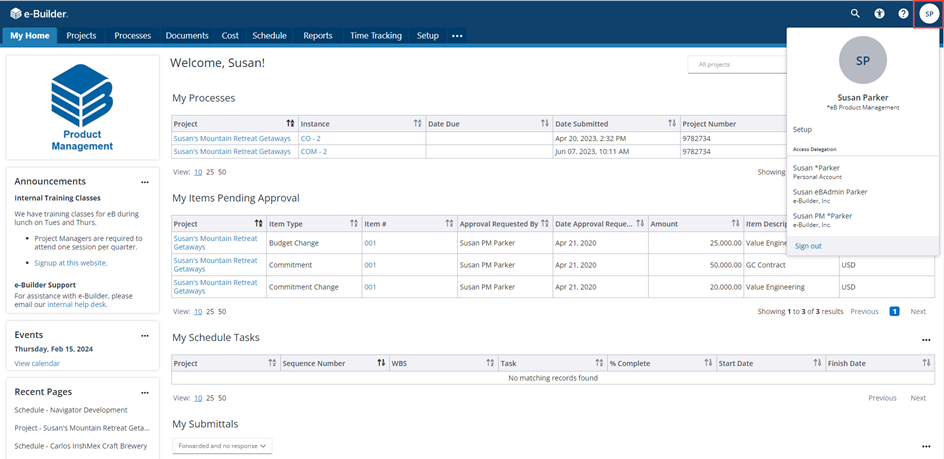
User Menu Displaying User Profile with Access Delegation and Link to Setup
The green/ yellow/ red color performance indicator has been removed from e-Builder. This data is available on the e-Builder Trust page.
e-Builder is evaluating other methods to alert customers about a more helpful range of performance indicators in the future.
Project Process Landing Page - phased roll-out starting February 23, 2024
A new look for the Project Process page will gradually roll out starting on February 23, 2024. This streamlined interface will enable you to personalize your layout, and locate process instances more efficiently.
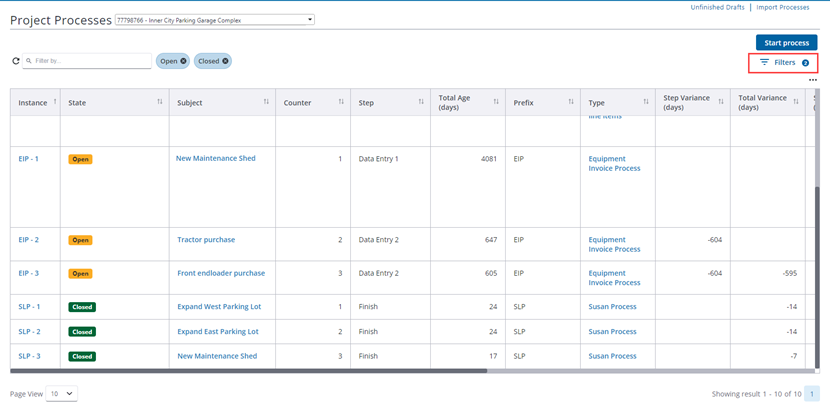
Project Process Landing Page Showing the Filters Button
You can perform the following actions on the Project Process page:
- Refresh results button
 : When clicked, the results for the selected filters are refreshed.
 - Apply text filters: Enter text in the Filter by field to filter records and return results containing the specified search criteria.
- Select filters: Click the Filters button to open the panel. Within the Filters panel, click X to close it. To reset all the filter selections back to the default, click the Reset button in the Filters panel.
Each filter that you select is displayed as a chip. The number of filters currently applied are displayed as a number on the Filters button.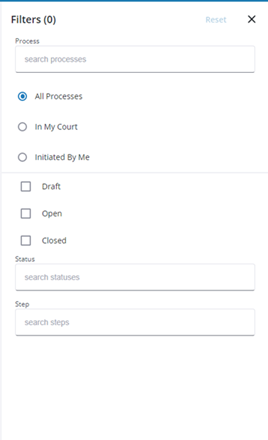
Filters Panel
The following fields are available in the Filters panel:
- Process: Enter search criteria to search from a list of available processes. The type of process selected in this field determines the buttons that display on the page and the statuses or steps available.
- All Processes: Select this option to filter by all processes including processes in your court, processes you initiated and all processes.
- In My Court: Select this option to filter by processes in your court.
- Initiated By Me: Select this option to filter by processes you initiated.
- Draft: Select this check box to filter for draft processes.
- Open: Select this check box to filter for open processes.
- Closed: Select this check box to filter for processes that have been closed.
- Status: Enter or select a specific process status to search for and filter records by. If no Process Type is selected, then the Status list will display all Process Status Options from the process setup. Once a specific Process Type is selected, then the list is narrowed to the account defaults and the statuses included in the process design.
- Step: Enter a specific process step to search and filter records by. Note that you will be able to select a step only after selecting a specific Process Type.
- Start New Process Instances: Use either of the following methods to start a new process instance:
- Start a process: To start a new process instance, click the Start Process button. In the Select Process Window that is displayed, enter search criteria in the search box, select a process and then click Start.
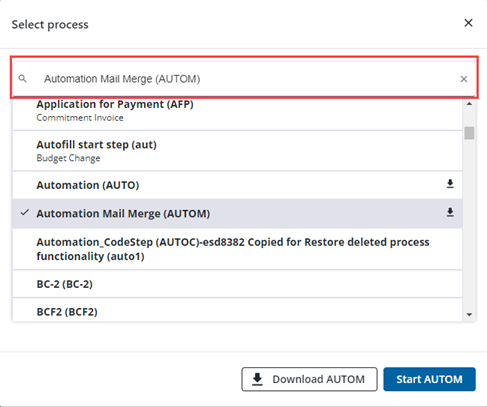
Search box in the Select Process Window
- Start a selected process: When a process type is selected from the Filters panel, the Start <selected process> button will be available on the Project Process page.
- Start a process: To start a new process instance, click the Start Process button. In the Select Process Window that is displayed, enter search criteria in the search box, select a process and then click Start.
- Select display columns: Click the
 icon to access a list of available columns and then select which columns to display in the grid.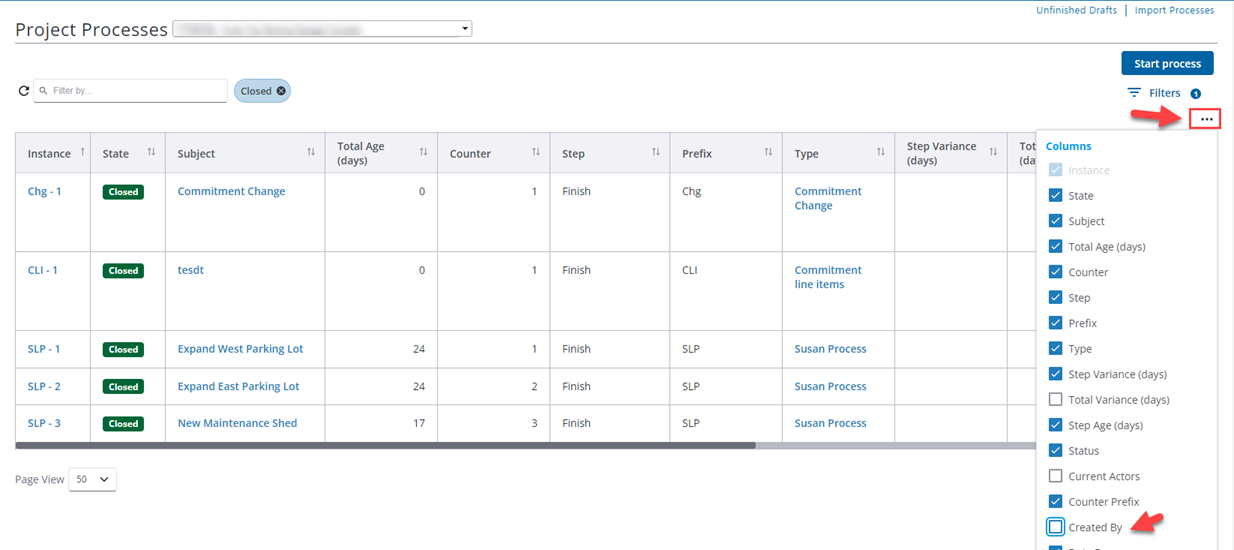
Select Columns to Display
- Sort: Sort the rows by clicking on the sorting arrow icons in any column header.
- Resize Column Width: Click and drag the borders of any column header to resize the column.
- Reorder Columns: Click and drag column headers to change the order of the columns.
- Change Page View: Select the number of rows to display per page from the Page View drop-down list.
- Navigate through Pages: When multiple pages of results are available, you will be able to click a page number to move to it.
The filters and grid display options that were last used are remembered and displayed the next time you come back to the page.
Data Warehouse - Data Expansion
As part of our new Reporting Initiative, the Data Warehouse (DWH) has been expanded to include the 'users' data group with the following fields:
- Account Name
- Username
- Load date
An updated Data Warehouse Data Dictionary will be published soon.
Resolved Cases
The following issues have been resolved:
Business Intelligence
- Previously, opening the drop-down on a BI filter would cause an error. Now, the drop-down works properly. (Case# 554315)
Calendar
- When meeting minutes were sent out via email, the email message did not contain the body text that was entered by the sender. This is now fixed. (Case# 550568)
Data Warehouse
- Resolved an issue where rows were missing in the data warehouse after importing the cashflow. (Case# 546095)
Home
- The column sorting for My Home widgets was not functioning correctly in the Firefox browser. The Sort feature is now operational in all supported browsers. (Case# 544174)
Processes/ Workflow
- For Commitment Invoices with Funding enabled and Custom Funding distributions, our system validation code was updated to support 99.9999% accuracy of distributions set by the user who enters Funding Source Amounts and not Percentages. (Case# 548463)
- Resolved an issue causing error messages on certain Processes with automation steps, and the resolution allowed stuck process instances to move forward. (Case# 550101)
- Processes that are configured with offline external participation were not sending email notifications to external actors. These notifications are now being sent correctly. (Case# 553476)